 Exhibit
How do I print text messages from my iPhone on a Mac?
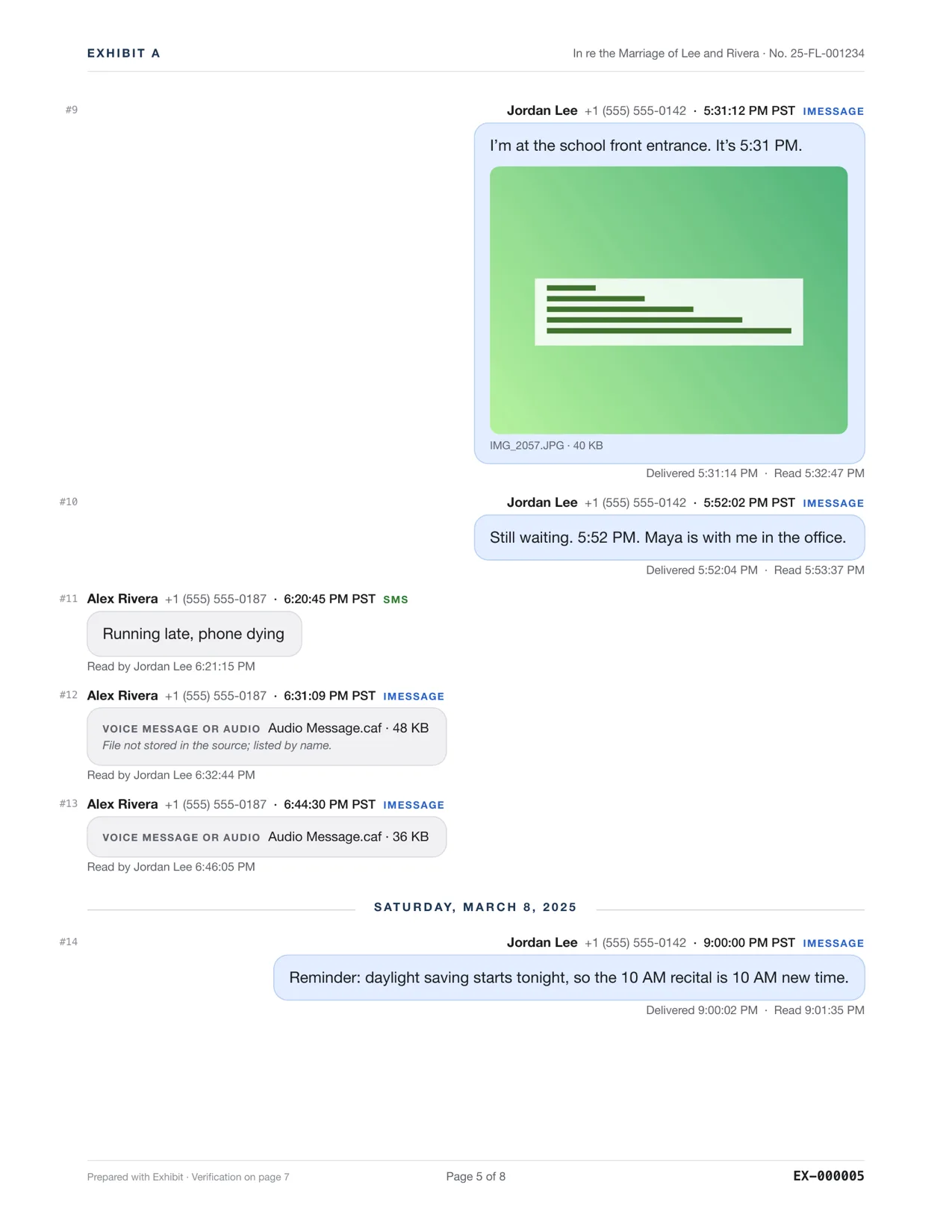
Get the messages onto the Mac first, either with Messages in iCloud or by plugging in the iPhone and letting Exhibit back it up, then turn the conversation into one PDF and print it from Preview. Every printed message shows its date, time and sender, with photos where they were sent. The iPhone itself has no print option for a whole conversation, so this is the way to get it on paper without screenshots.
Updated November 18, 2026 · Not legal advice
Step 1: get the texts onto the Mac
- Messages in iCloud: turn it on in iPhone Settings, your name, iCloud, Messages, and in Messages on the Mac, Settings, iMessage. A long history can take hours to sync.
- Or a local backup: plug the iPhone into the Mac with a cable, tap Trust on the phone, and in Exhibit choose the iPhone. Exhibit makes the backup itself, the same kind Finder makes, and reads the messages from it. This includes SMS from Android users and older messages iCloud never synced.
Exhibit for Mac turns the conversation into a PDF you can file: exact times, read receipts, edits, Bates numbers. $19.99 once, no subscription, 7-day refund.
Step 2: make the PDF
- In Exhibit, pick the conversation and set the Range.
- Choose what to show: photos inline, voice message transcripts, read receipts.
- Click Create Exhibit and read the PDF.
Step 3: print it
Open the saved PDF in Preview and choose File, Print. Every page is numbered, Page X of Y, so a printed stack stays in order.
What about screenshots?
Screenshots show what fits on the screen: often no year, no seconds, and nothing that shows a message was edited. A long thread becomes hundreds of images. A PDF made from the messages themselves avoids all of that.
Printing texts for a court case? See printing text messages for court, which covers Bates numbers and a declaration.
Questions
Can I print texts without a Mac?
Exhibit runs only on a Mac. Without one, you can screenshot the thread on the iPhone and print the images, or use an iPhone export app.
Do I need iTunes or Finder?
No. Exhibit makes the iPhone backup itself with the backup service built into macOS. If that ever fails, it tells you how to back up in Finder and open that backup instead.